Adding apps to KACE Cloud
KACE Cloud comes with the Apps Library that you can use as a central repository of apps that are used in your organization. You can add apps from a variety of sources, such as app store apps, system and web apps. Administrators can also add custom-hosted apps by providing a URL path. In some cases, the recommended course of action is to download a desired app to a local drive, obtain required parameters such as the bundle ID or the Windows registry key, and then add the app to the KACE Cloud Apps Library.
Having an app in the Apps Library allows you to manage the app's configuration in a central location. For example, you can enable automatic updates for an Android or iOS app in the Apps Library so that the target devices always run the latest version of the app.
The Apps library allows you to view app details, filter subsets of apps, edit settings on edit-enabled apps, manage apps from the library, view all devices with a specific app assigned, or add a new email account to the library.
You can filter by subset criteria to pare down a full Apps Library list.
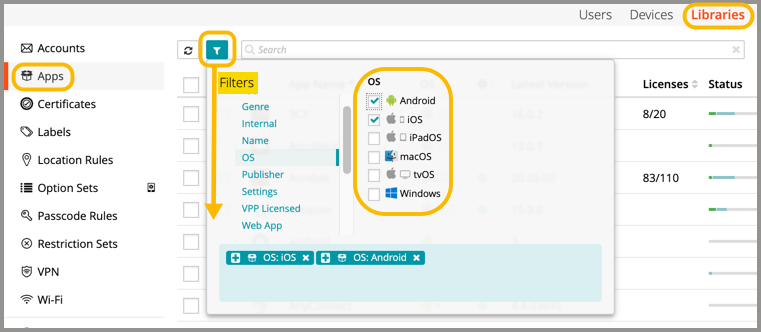
For instructions on how to add apps to the KACE Cloud Apps Library, see the following topics: